QUESTION 80
Drag and Drop Question
Your organization introduced a new loyalty solution that exposes the loyalty profile and related point transactions in an Azure SQL Database.
You need to ensure the new loyalty data is imported from the Azure SQL Database into Dynamics 365 Customer Insights ?Data and refreshed incrementally.
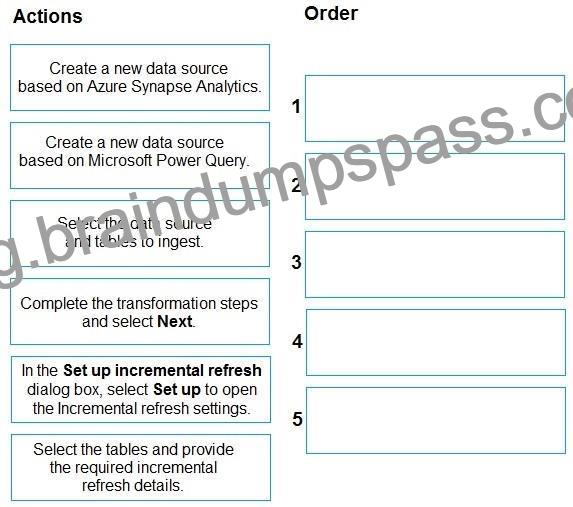
Which five actions should you perform in sequence within Customer Insights ?Data before selecting Save to complete the creation? To answer, move the five appropriate actions from the list of actions to the answer area. Arrange the five actions in the correct order.
Explanation:
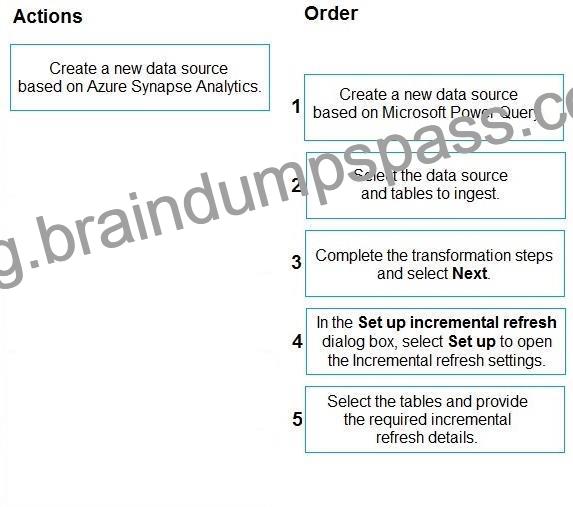
Step 1: Create a new data source based on Microsoft Power Query
To configure Dynamics 365 Customer Insights – Data, first bring in source data for processing.
Customer Insights – Data provides several types of data connectors to connect to and ingest data from a broad set of sources.
Customer Insights – Data, Connect to a Power Query data source
Power Query with data source Azure SQL Database supports incremental refresh.
Step 2: Select the data source and tables to ingest
Connect to Azure SQL database from Power Query Desktop
To connect to an Azure SQL database from Power Query Desktop, take the following steps:
1. Select Azure SQL database in the get data experience. The get data experience in Power Query Desktop varies between apps
2. In SQL Server database, provide the name of the server and database (optional).
3. Select either the Import or DirectQuery data connectivity mode.
[Steps omitted]
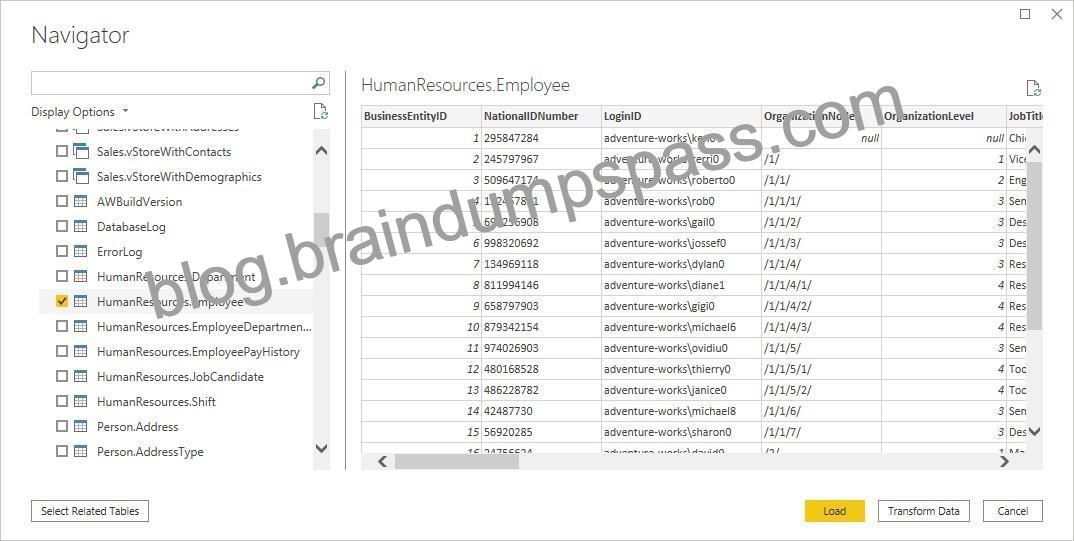
7. In Navigator, select the database information you want [Step 2], then either select Load to load the data or Transform Data [Step 3] to continue transforming the data in Power Query Editor.
Step 3: Complete the transformation steps and select Next,
Step 4: In the Set up incremental refresh dialog box, select Set up to open the Incremental refresh settings.
When you select Incremental Refresh [Step 4], a pop-up window will appear. In this window, select the table [Step 5] that you want to set up for incremental refresh and click the button next to Incrementally refresh this table.
Step 5: Select the tables and provide the required incremental refresh details.






Recent Comments